
01
A camera Windows can use
Select STICam in a compatible app such as OBS, Zoom, Teams, or Discord after the preview is ready.
STICam / WINDOWS + ANDROID
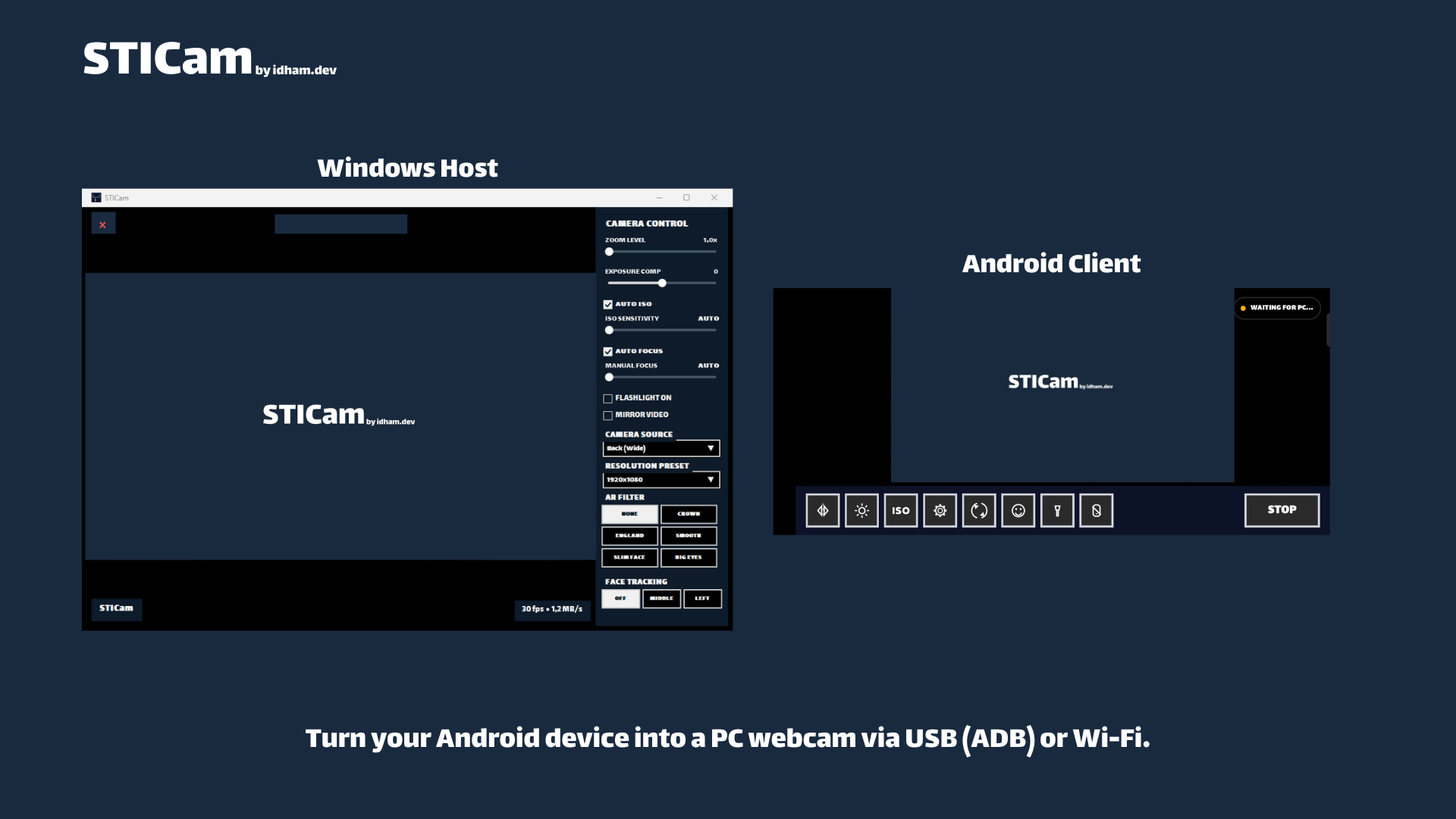
Use the camera you already have for video calls and recording. STICam connects an Android phone to a Windows 11 PC over USB or trusted local Wi-Fi, then makes it available as a Windows virtual camera.
Free to use · Proprietary freeware · Windows host + Android app
BUILT FOR THE EVERYDAY SETUP
01
Select STICam in a compatible app such as OBS, Zoom, Teams, or Discord after the preview is ready.
02
Use a USB/ADB connection at your desk, or trusted local Wi-Fi when a cable is inconvenient.
03
Use on-device auto-framing and supported camera controls from the Windows host. Available controls depend on the phone.
BEFORE YOU DOWNLOAD
Install both halves of the product. The Android app does not replace the Windows companion.
FROM DOWNLOAD TO CONNECTED
Follow our step-by-step STICam setup guide, with an ID / EN language choice, or use the official instructions for your release.
Full setup documentation ↗GOOD TO KNOW
No STICam account is needed. STICam is free to use under its proprietary freeware terms; it is not an open-source app.
This setup is for an Android phone and Windows 11 PC. Do not assume support for other operating systems.
First check that your target app detects STICam, then test your actual lighting, camera, and connection. Device behavior and network quality vary.
READY TO TRY IT?
Download from the official release page. If something does not work, include the app version, device, and connection mode in your report.