
STICam
Use an Android Phone as a Windows Webcam with STICam
Set up an Android phone as a Windows 11 webcam with STICam over USB or trusted local Wi-Fi. Check requirements, camera selection, audio, and common problems.

· 5 min read · Updated October 30, 2026
Can an Android phone work as a Windows webcam?
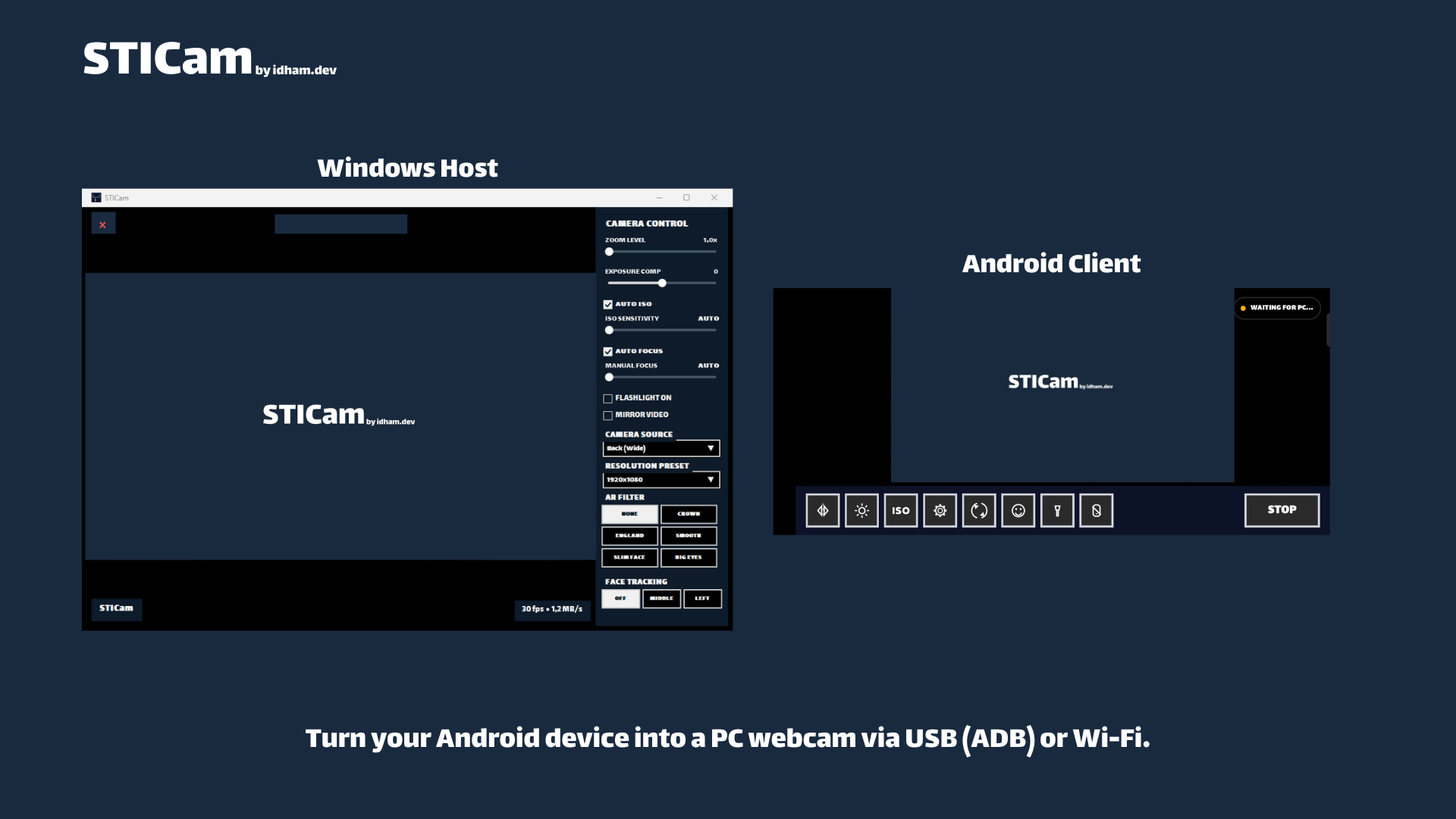
Yes. To use an Android phone as a Windows webcam, install STICam on the phone and PC, connect over USB or trusted local Wi-Fi, and select STICam in your meeting or recording app. Wait for the live preview first so that the Windows virtual camera is ready.
If you need another screen rather than a camera, follow the FOLD guide to using an Android tablet as a second monitor.
Check the requirements before downloading
- Windows 11 22H2, build 22621, or newer.
- Android 8.0 or newer.
- The Windows installer and Android APK from the official STICam release.
- A data-capable USB cable or access to the same trusted private network.
- A phone stand and lighting suitable for your camera position.
The public release checked for this guide is STICam v1.0.3. Its files are STICam_Installer_v1.0.3.exe and STICam_v1.0.3.apk. The Windows installer provides the host, virtual camera, and required runtime support. Installing only the APK does not make the camera available to Windows.
Compare the downloaded files with the release's SHA-256 checksums using the official verification guide. Get both apps from an official distribution channel and record the host/client versions when troubleshooting.
Choose USB or Wi-Fi
| Connection | What to prepare | What to check |
|---|---|---|
| USB / ADB | Data cable, USB debugging, and PC authorization | This is separate from Android's built-in Webcam mode; select the correct phone if several are connected |
| Local Wi-Fi | Phone and PC on a trusted private network | STICam video and control traffic is neither encrypted nor authenticated |
USB is convenient when the phone stays near the desk. Wi-Fi gives you more freedom to place it, but use only a network you control and trust. Prefer USB on shared or public networks. Read the STICam security policy before choosing the connection.
Install the Windows and Android applications
Run the official Windows installer and complete the host and virtual-camera installation. Open STICam on Windows and Android, then grant the phone's required camera permission.
Windows may display publisher information for the installer. Check the release notes' signing status and verify the file; do not substitute an installer from an unknown mirror. On Android, use an official distribution channel available for your device.
Connect STICam over USB
- Enable Developer options and USB debugging on Android.
- Connect a data-capable USB cable, unlock the phone, and approve the debugging prompt for your trusted PC.
- Select USB in the Windows and Android apps.
- If several ADB devices are detected, select the intended phone in the Windows host.
- Click Connect on Windows, then start the stream on Android.
- Wait for the camera preview before choosing the source in your target app.
The host prepares the ADB connection for the selected device. If the phone is missing, check the cable, debugging authorization, and device selection before changing other settings. When debugging is no longer needed, you can disable it and review old PC authorizations.
Connect over local Wi-Fi
- Connect the PC and phone to the same trusted private network.
- Select Wi-Fi in STICam on Windows and click Connect.
- Enter the PC IP displayed by the host into the Android app.
- Start the stream on Android and wait for the preview.
- If Windows asks for firewall access, allow the app on Private networks only.
Use the PC IP, not the phone's IP. A guest network may isolate devices even when they share a router. Avoid disabling the entire firewall to troubleshoot one application.
Select the camera in a meeting or recording app
The STICam virtual camera starts automatically when the live preview is ready. Open the video settings in OBS, Zoom, Teams, Discord, or another app supporting Windows virtual cameras, then select STICam as the camera source.
STICam v1.0.3 does not install a virtual microphone or request Android microphone access. Choose a microphone separately in your meeting app. Working video does not mean the phone's audio is being sent with it.
Check framing and lighting before changing camera controls. Zoom, exposure, focus, camera selection, and other controls depend on the phone's capabilities. Avoid repeatedly switching cameras extremely quickly; the documentation records a limitation with that pattern.
Troubleshoot the missing camera by symptom
- Phone missing over USB: check the data cable, debugging prompt, and selected device.
- Wi-Fi will not connect: check the exact PC IP, private-network profile, and guest isolation.
- Preview works but the meeting app cannot find the camera: close and reopen that app, then check its camera list.
- Video works but audio does not: choose a separate microphone; STICam is not a virtual microphone.
- Dark image or awkward framing: improve lighting, phone position, and lens cleanliness first.
Before an important meeting, run a short check with the app and connection you will actually use. When reporting a problem, include the app version, Windows/Android version, phone model, and connection mode. Keep camera contents and private logs out of public issues.
Frequently asked questions
Is STICam free and open source?
STICam is free to use under its proprietary freeware terms. Its source code is private; the public repository supplies documentation, support, and official downloads.
Does a server process the video?
STICam does not use a cloud relay or developer-operated camera-processing server. Its Wi-Fi transport limitations still apply. Android v1.0.0 included upstream MediaPipe metrics transport; the documentation records its removal from v1.0.1 onward. Read the version-specific Privacy Policy.
Can Android also become an extra Windows display?
Use FOLD for that separate function, then follow the Android second-monitor setup guide.
Documentation and downloads
Continue with the STICam product page, official connection instructions, and changelog. This guide was checked against the public release and documentation on 20 October 2026; it does not claim new testing on every phone model.