
FOLD
Use an Android tablet as a second monitor on Windows 11 with FOLD
Set up FOLD to extend a Windows 11 desktop to an Android tablet or phone using USB or trusted local Wi-Fi. Requirements, setup steps, and troubleshooting.
· 5 min read · Updated October 30, 2026

Can an Android tablet work as a second monitor?
Yes. An Android tablet can become a second monitor for a Windows 11 PC with FOLD. Install the Windows host and Android client, connect them over USB or trusted local Wi-Fi, and move an app onto the extra Windows display. A phone can use the same client, although a tablet gives you more practical desktop space.
This guide covers an extended desktop. If you need your phone's camera for a video call instead, follow the STICam webcam setup guide.
Understand what FOLD adds
FOLD creates a separate virtual monitor in Windows. It does not mirror your primary monitor, cast Android to the PC, or turn a tablet's USB-C port into HDMI input. The Windows host captures that virtual display and sends it to the Android app.
You can place a reference document, chat window, or another Windows app on the additional screen. An empty desktop wallpaper on Android can simply mean that no window has been moved onto FOLD Display yet.
Prepare the PC and Android device
- Windows 11 x64 is the officially supported host platform.
- Android 8.0 or newer is required; root is not needed.
- Download both Windows and Android installers from the official FOLD release.
- Use a data-capable USB cable or a trusted private network shared by both devices.
The public release checked for this guide is FOLD v1.0.0. Its assets are named FOLD_setup.exe and FOLD.apk. Verify them against the release checksums and follow the download-verification instructions.
The current official documentation limits Windows support to Windows 11 x64. Windows 10 is outside the support scope. This walkthrough follows that Windows 11 setup.
Choose USB or Wi-Fi
| Connection | What you need | Main consideration |
|---|---|---|
| USB / ADB | Data cable, USB debugging, and PC authorization | Keep the cable connected; approve only your own trusted PC |
| Local Wi-Fi | Both devices on one trusted private network | FOLD traffic has no application-level encryption or peer authentication |
Start with USB when a cable is practical or the network cannot be trusted. For Wi-Fi, avoid guest or public networks and never port-forward FOLD's ports to the internet.
Install and check the virtual display
Install the Windows host and its bundled virtual display driver, then open FOLD on both devices. Open Settings > System > Display on Windows and select Extend these displays for the additional display if necessary.
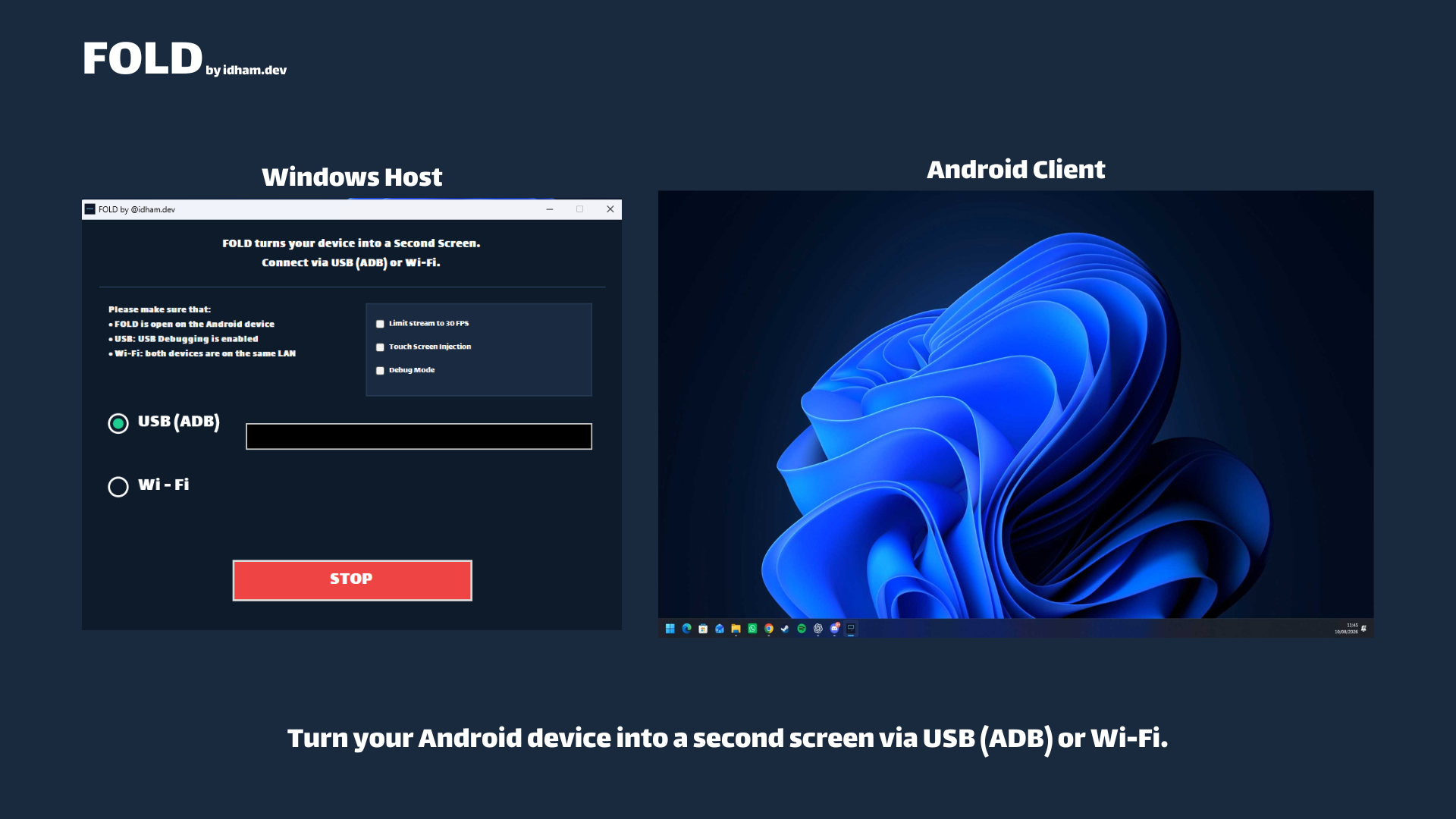
The image above is a product overview from the project documentation; controls can differ by release. If no extra display appears, resolve the Windows driver/display setup before troubleshooting the Android connection. Installing the APK alone cannot create a Windows monitor.
Connect over USB
- Enable Developer options and USB debugging on Android.
- Connect a data-capable cable and approve the fingerprint of the PC you trust.
- Select USB (ADB) in Windows FOLD. If several devices appear, choose the intended device from the dropdown.
- Press START on Windows.
- Select USB in Android FOLD and tap CONNECT.
- Move a Windows app onto the extra display and check that it appears on Android.
If the selector is empty, unlock Android, check debugging authorization, and reopen the device dropdown. A cable that charges successfully may still lack data support.
Connect over trusted local Wi-Fi
- Connect the PC and Android device to the same trusted private network.
- Select Wi-Fi on Windows and copy Your PC IP.
- Press START on Windows before connecting Android.
- Select Wi-Fi on Android, enter that PC address, and tap CONNECT.
- If Windows requests firewall access, allow the app on Private networks only.
Use the PC address, not the Android address or a public internet address. Guest isolation, VPN routing, or a changed IP can prevent a connection even when both devices appear online. The FOLD security policy explains the trusted-network boundary.
Adjust the session and troubleshoot by symptom
Enable Touch Screen Injection on Windows if you want Android touch to control the virtual display. A 30 FPS limiter is available when reducing the stream load is useful; actual performance depends on the devices and encoder available.
- Wallpaper but no app: move a window onto FOLD Display and confirm Extend is selected.
- USB device missing: check the data cable, debugging approval, and selected device.
- Wi-Fi will not connect: verify the exact PC IP, start Windows first, and check private-network access.
- Touch unavailable: enable the host's touch option and check the input-helper setup.
- Stutter or heavy CPU use: try the 30 FPS limiter and USB; consult the documented encoder and resolution guidance.
Before reporting a problem, record the host/client version, Windows build, Android model/version, connection mode, and failure point. Keep screen contents, keys, and private logs out of public reports. The official troubleshooting guide provides the next checks.
Frequently asked questions
Can I use a phone instead of a tablet?
Yes, the Android client is used on phones and tablets. A smaller screen leaves less usable workspace. Check input, orientation, and reconnection on your own device before relying on the setup.
Is FOLD free to use?
FOLD is proprietary freeware under its EULA. Its public repository provides documentation and official downloads; free use does not mean the app is open source.
Does this also turn the phone into a webcam?
That is a separate job. Use the STICam product page and its Android-to-Windows webcam guide for camera setup.
Documentation and next steps
Start from the FOLD product page for downloads and a shorter overview. This guide was reviewed against the official release, README, getting-started guide, troubleshooting notes, and security policy on 20 October 2026. It describes documented setup steps and does not claim a new hardware benchmark. Read the getting-started guide and privacy notice for the version you install.